Logs and Data Restoration
The Backup Logs tab serves as the historical record for your account. It lists every job attempted, its timestamp, and its final status.
Always check the Status column to verify that jobs are marked as Successful. Because this is a collaborative environment you will see logs generated by all users in your team, which helps prevent redundant backup tasks.
Backup Logs Table
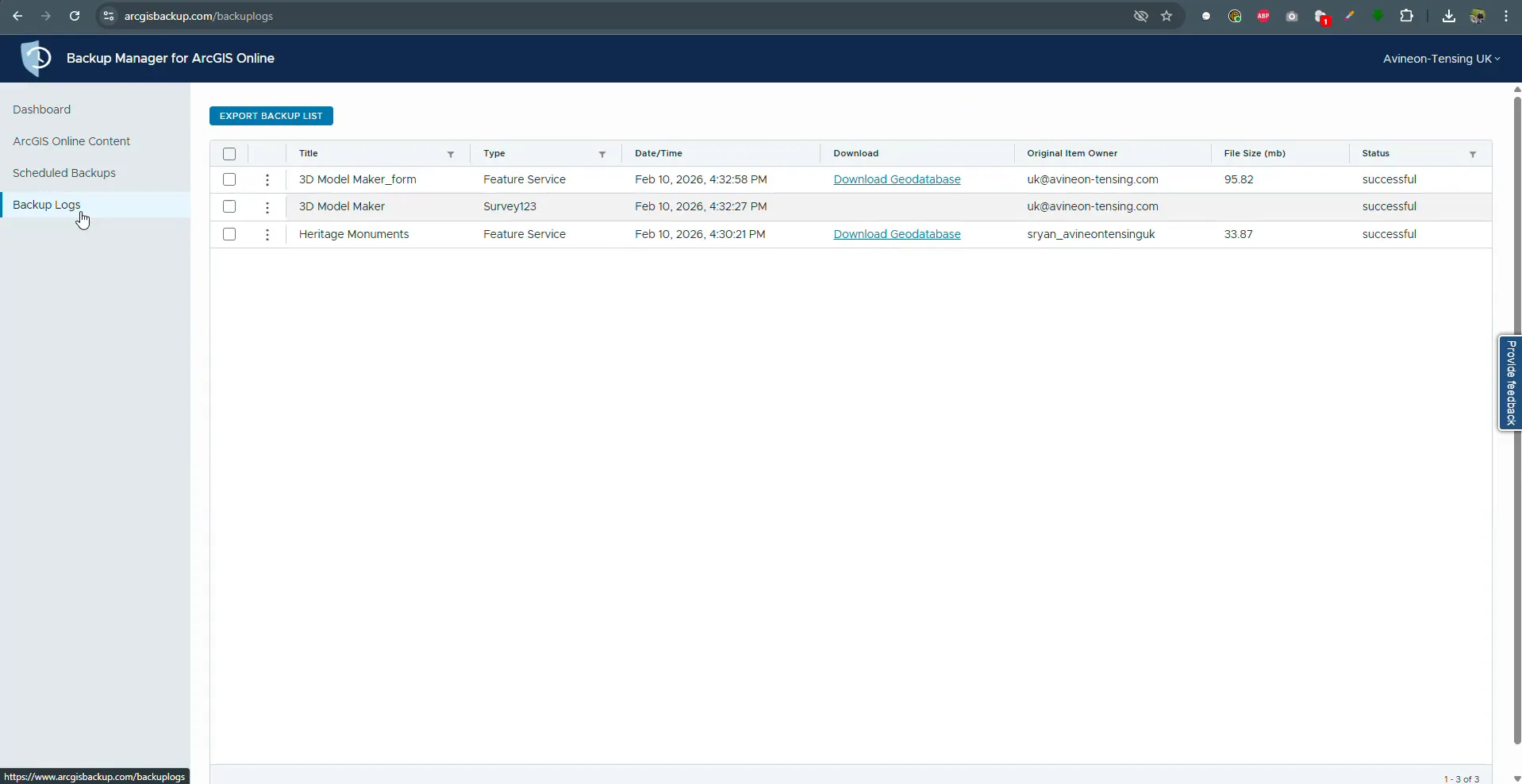
The backup logs showing options to download or restore data.
The EXPORT BACKUP LIST button allows you to export the entire history of backup jobs into a spreadsheet format for auditing or reporting.
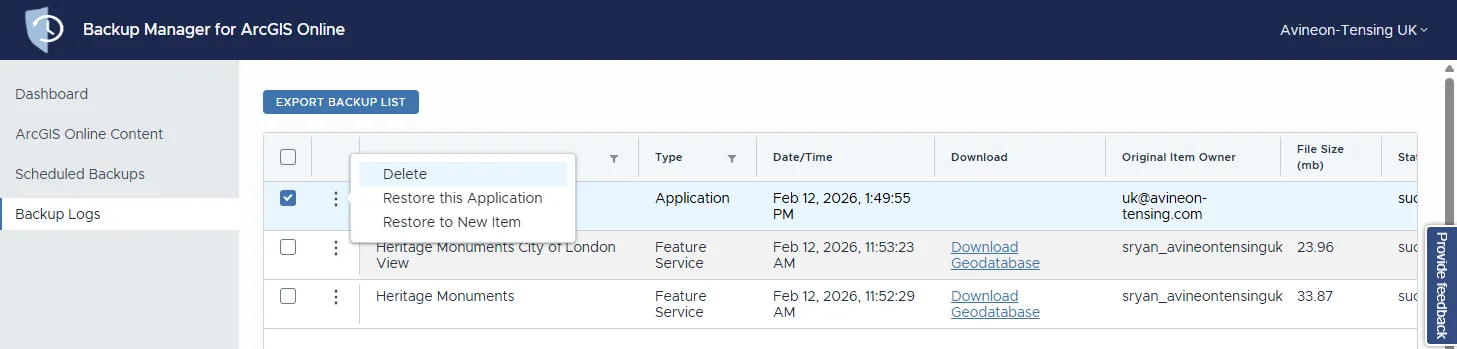
The detailed log table.
Column | Description |
|---|---|
Title | The name of the item that was backed up. |
Type | The category of the resource (e.g., Application, Feature Service, View). |
Date/Time | The timestamp when the backup job was completed. |
Download | For Feature Services, a Download Geodatabase link is provided to save a local copy of the data. |
Original Item Owner | The ArcGIS Online user who owns the source item. |
File Size (mb) | The size of the backup file stored in the system. |
Status | Indicates if the job was successful or encountered an error. |
Log Action Context Menu
When clicking the action icon (three vertical dots) for a specific log entry, the options vary depending on the item type. For an Application:
Action | Description |
|---|---|
Delete | Removes the specific backup log and the associated stored data from the manager. |
Restore this Application | Reverts the live application on ArcGIS Online to the exact state captured in this log entry. |
Restore to New Item | Creates a brand-new item on ArcGIS Online using the backup data, preserving the current live version while allowing you to inspect or recover the backed-up version separately. |
Data Access
Download Geodatabase (visible for Feature Services) — A direct link to download the backed-up data as a file geodatabase for use in ArcGIS Pro or other desktop applications.